

Keys and signing
Keys and Addresses
Algorand uses Ed25519 high-speed, high-security elliptic-curve signatures. The keys are produced through standard, open-source cryptographic libraries packaged with each of the SDKs. The key generation algorithm takes a random value as input and outputs two 32-byte arrays, representing a public key and its associated private key. These are also referred to as a public/private key pair. These keys perform essential cryptographic functions like signing data and verifying signatures.
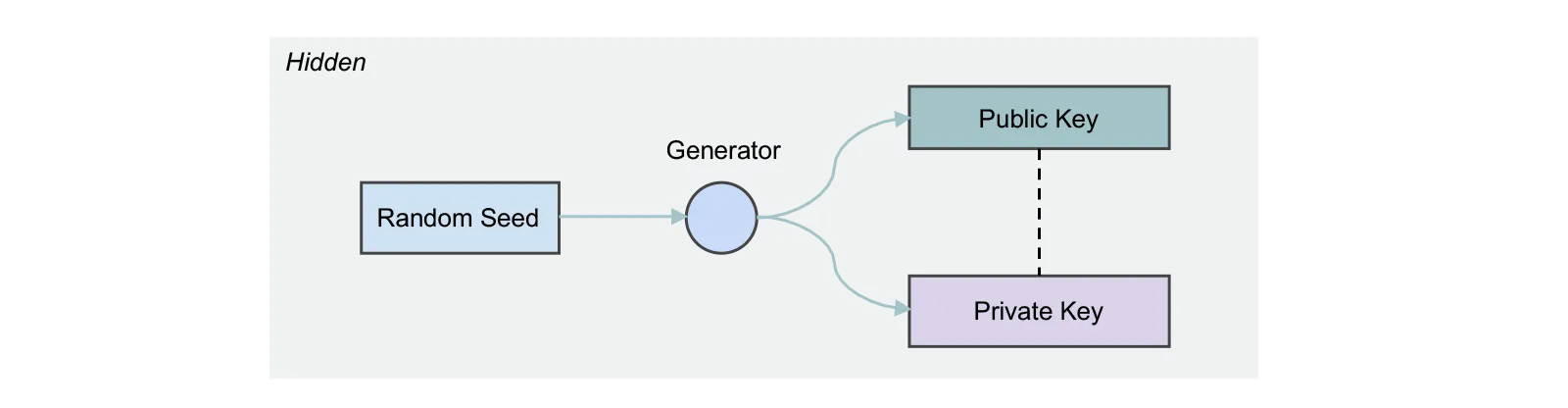
For reasons that include the need to make the keys human-readable and robust to human error when transferred, both the public and private keys transform. The output of these transformations is what most developers, and usually all end-users, see. The Algorand developer tools actively seek to mask the complexity involved in these transformations. So unless you are a protocol-level developer modifying cryptographic-related source code, you may never actually encounter the actual public/private key pair.
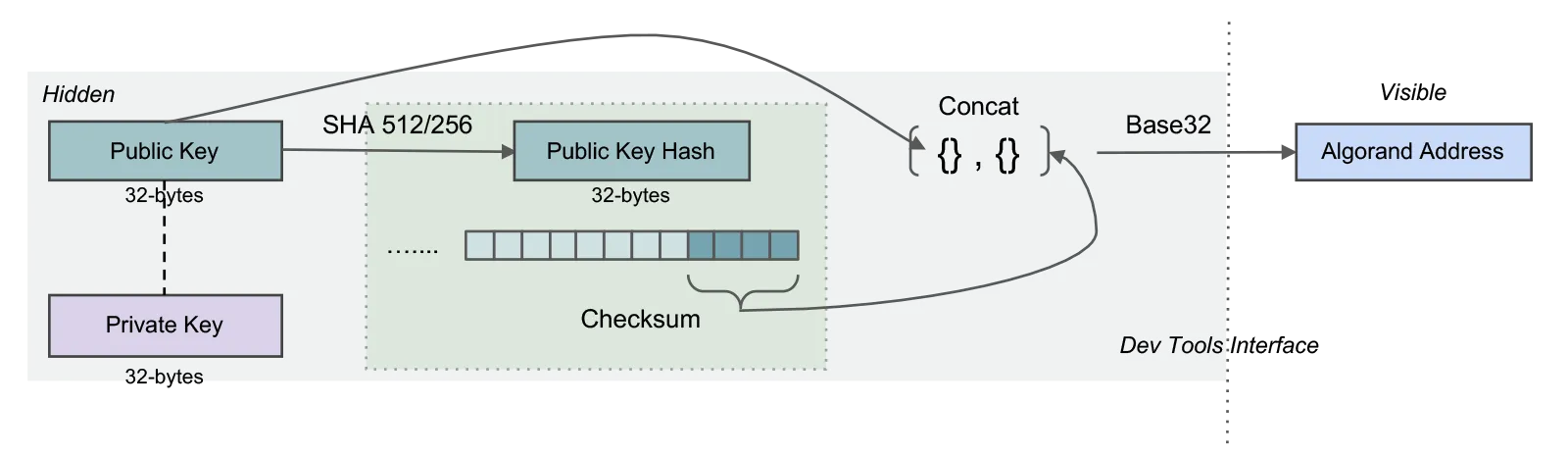
Transformation: Public Key to Algorand Address
The public key is transformed into an Algorand address by adding a 4-byte checksum to the end of the public key and then encoding it in base32. The result is what the developer and end-user recognize as an Algorand address. The address is 58 characters long.
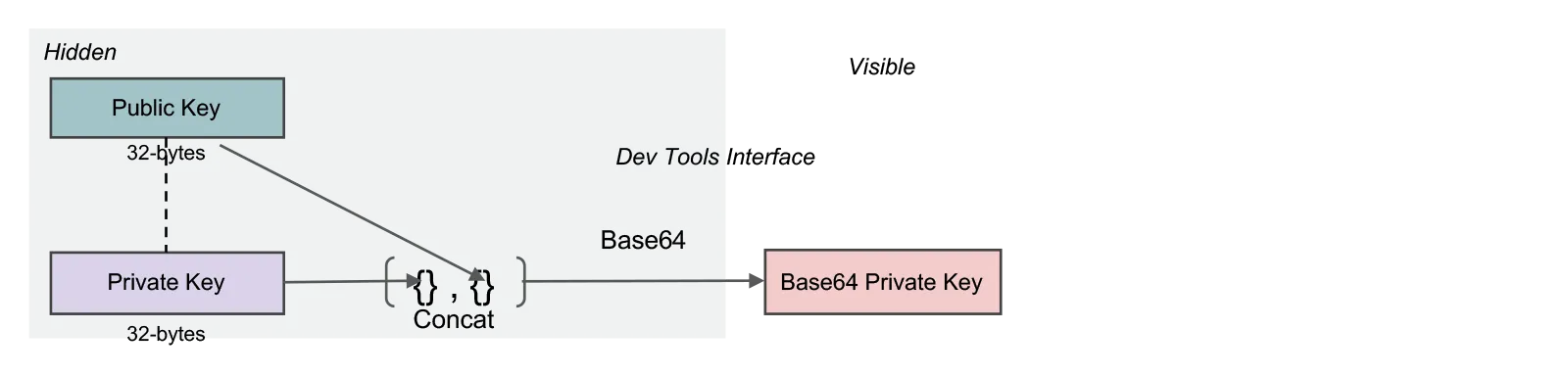
Transformation: Private Key to base64 private key
A base64 encoded concatenation of the private and public keys is a representation of the private key most commonly used by developers interfacing with the SDKs. It is likely not a representation familiar to end users.
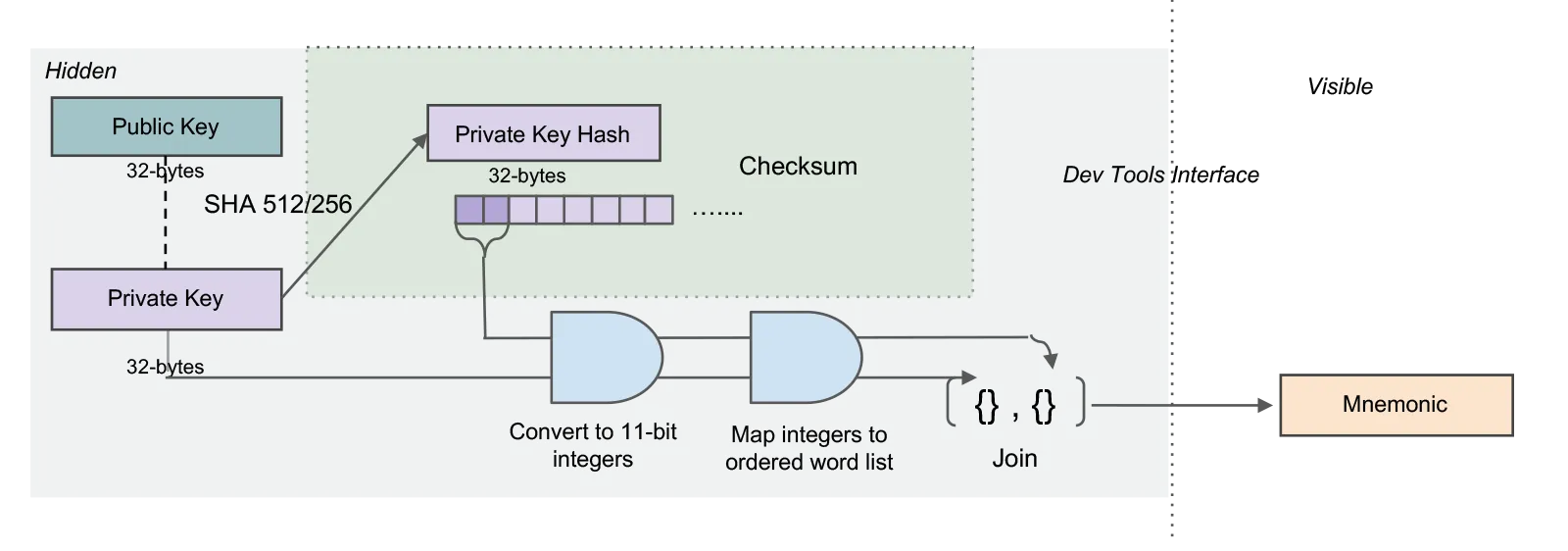
Transformation: Private Key to 25-word mnemonic
The 25-word mnemonic is the most user-friendly representation of the private key. It is generated by converting the private key bytes into 11-bit integers and then mapping those integers to the bip-0039 English word list, where integer n maps to the word in the nth position in the list. By itself, this creates a 24-word mnemonic. A checksum is added by taking the first two bytes of the hash of the private key and converting them to 11-bit integers and then to their corresponding word in the word list. This word is added to the end of the 24 words to create a 25-word mnemonic.
This representation is called the private key mnemonic. You may also see it referred to as a passphrase.
To manage keys of an Algorand account and use them for signing, there are several methods and tools available. Here’s an overview of key management and signing processes:
Signing using accounts
Using algokey
Algokey is a command-line tool provided by Algorand for managing cryptographic keys. It enables users to generate, export, import, and sign transactions using private keys. To sign a transaction, users need access to their private key, either in the form of a keyfile or mnemonic phrase. The signed transaction can then be submitted to the Algorand network for validation and execution. This process ensures that transactions remain tamper-proof and are executed only by authorized entities. To sign a transaction using an account with algokey, you can use the following command.
1algokey sign -t transaction.txn -k private_key.key -o signed_transaction.stxnFor more details refer here.
Using Algokit utils
AlgoKit Utils simplifies the management of standalone Algorand accounts, signing in both Python and TypeScript by abstracting the complexities of Algorand SDKs, allowing developers to generate new accounts, retrieve existing ones, and manage private keys securely. It also streamlines transaction signing by providing flexible signer management options:
Default signer
A default signer is used when no specific signer is provided. This helps streamline transaction signing processes, making it easier for developers to handle transactions without manually specifying signers each time.
1 /**2 * Set up a default signer for transactions.3 * This will be used when no specific signer is provided.4 */5 algorand.account.setDefaultSigner(randomAccountA)Multiple signers
In certain use cases, multiple signers may be required to approve a transaction. This is particularly relevant in scenarios involving multi-signature accounts, where different parties must authorize transactions before they can be executed.
1 /**2 * Register multiple transaction signers at once.3 * Demonstrates the fluent interface for registering signers.4 */5 algorand.account6 .setSignerFromAccount(randomAccountA)7 .setSignerFromAccount(randomAccountB)8 .setSignerFromAccount(randomAccountC)Get signer
When working with transactions, it is often necessary to retrieve a specific signer for an account. This ensures that only authorized entities can sign and approve transactions. If a signer is not registered, an error may be thrown to prevent unauthorized transaction execution.
1 /**2 * Retrieve a transaction signer for a specific address.3 * Returns the registered signer or throws if none is found.4 */5 const signer = algorand.account.getSigner('ACCOUNT_ADDRESS')Override signer
Create an unsigned payment transaction and manually sign it.
1  /**2   * Create an unsigned payment transaction and manually sign it.3   */4
5  const accountASigner = algorand.account.getSigner('ACCOUNT_ADDRESS')6
7  const paymentTxn = await algorand.createTransaction.payment({8    sender: randomAccountA,9    receiver: randomAccountB,10    amount: algo(1),11    note: 'Payment from A to B',12  })13
14  // The transaction signer can be overridden in the second argument to `addTransaction`15  const txnGroup = algorand.newGroup().addTransaction(paymentTxn, accountASigner)16  await txnGroup.send()
Signing using wallets
Using pera wallet
To sign a transaction using Pera Wallet:
- Create your transaction: First, you need to create the transaction you want to sign using the Algorand SDK.
- Generate a QR code or deep link: Instead of signing the transaction directly with a private key, you’ll need to generate either a QR code or a deep link that contains the transaction details.
- User interaction: The user will then use the Pera Wallet app to scan the QR code or click the deep link. This will open the transaction in the Pera Wallet app.
- Review and sign: In the Pera Wallet app, the user will see the transaction details and can choose to sign it. For more details, refer to Transferring Assets.
HD wallet
(coming soon)